 gajet.hq
Unlock the Power of Microsoft 365: Your Comprehensive Installation Guide
Embarking on the journey to install Microsoft 365 on your computer or Mac? Look no further. This step-by-step tutorial will walk you through the entire process, ensuring a seamless and hassle-free installation. Whether you’re using a PC or a Mac, we’ve got you covered.
Install on a PC
Sign in to download Microsoft 365 or Office
- Step 1: Visit www.office.com and, if you haven’t logged in yet, click on the Sign in option.
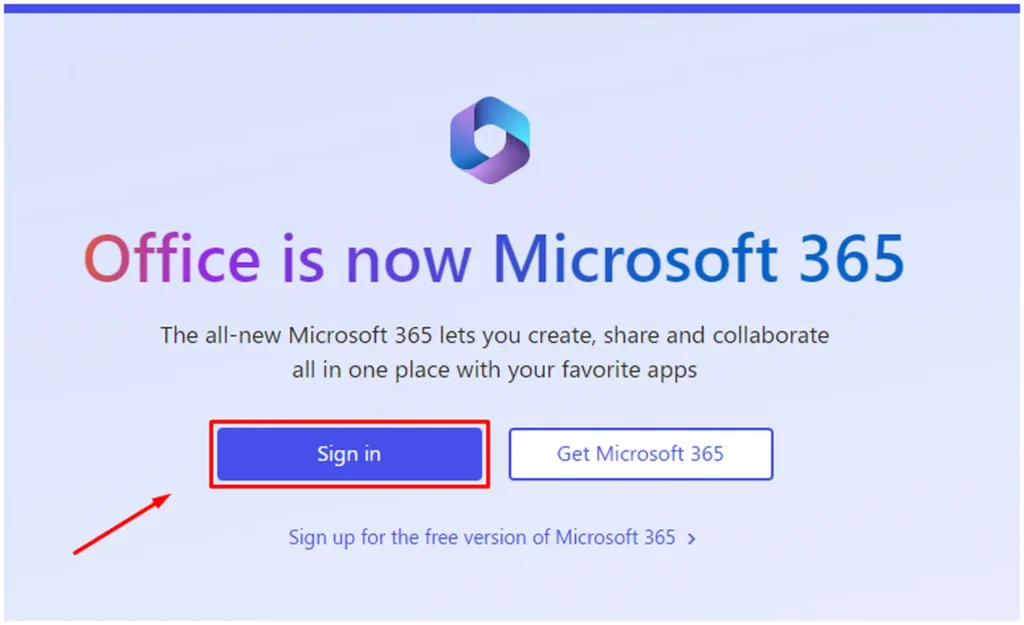
Note: For users of Microsoft 365 operated by 21 Vianet, log in using your work or school account at login.partner.microsoftonline.cn.
If you’re using Microsoft 365 Germany, log in with your work or school account at portal.office.de.
- Step 2: Log in with the account linked to this version of Microsoft 365. It could be a Microsoft account or a work or school account.
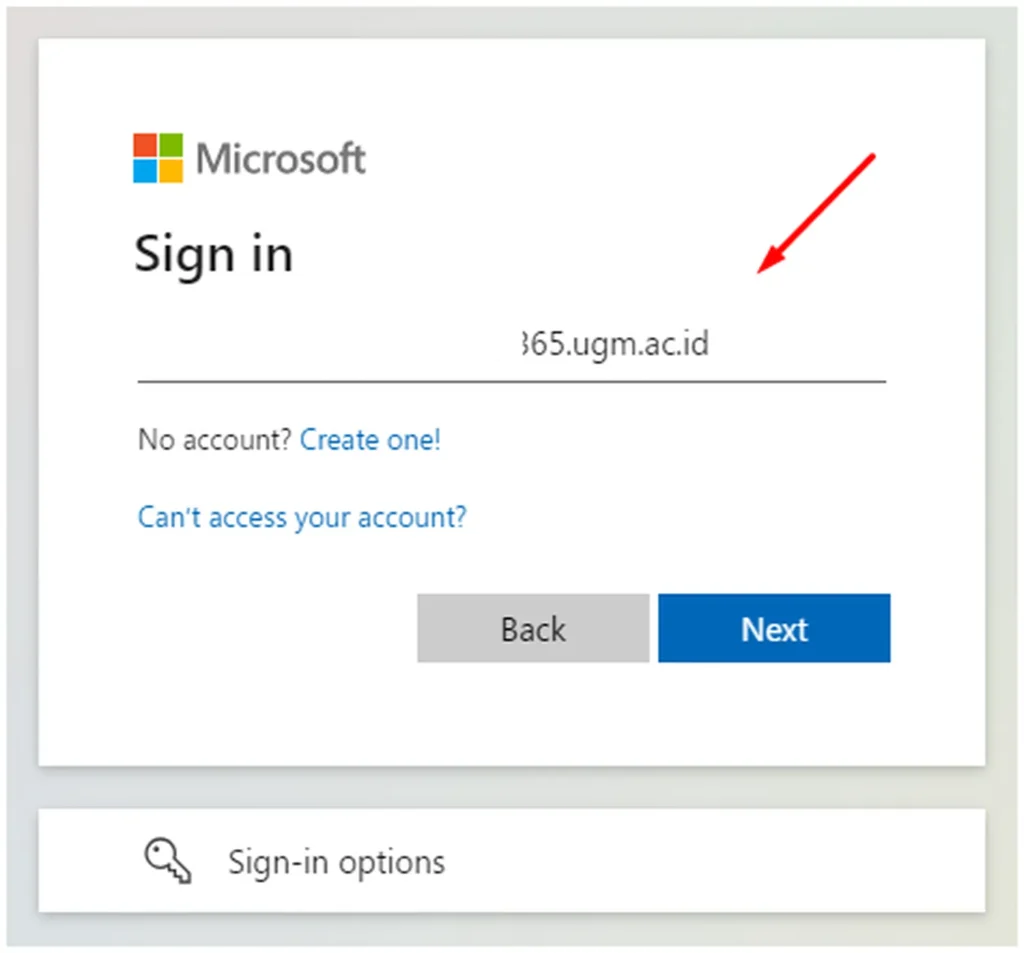
- Step 3: Once logged in, follow the steps corresponding to the type of account you used.

- Step 4: The download of Microsoft 365 to your device is now finished. To finish the installation, just follow the instructions in the “Install Microsoft 365” section below.
Install Office
- Step 1: Choose the appropriate option based on your browser: click Run (for Microsoft Edge or Internet Explorer), Setup (for Chrome), or Save File (for Firefox).
If you encounter the User Account Control prompt asking, “Do you want to allow this app to make changes to your device?” click Yes.
The installation process will commence.
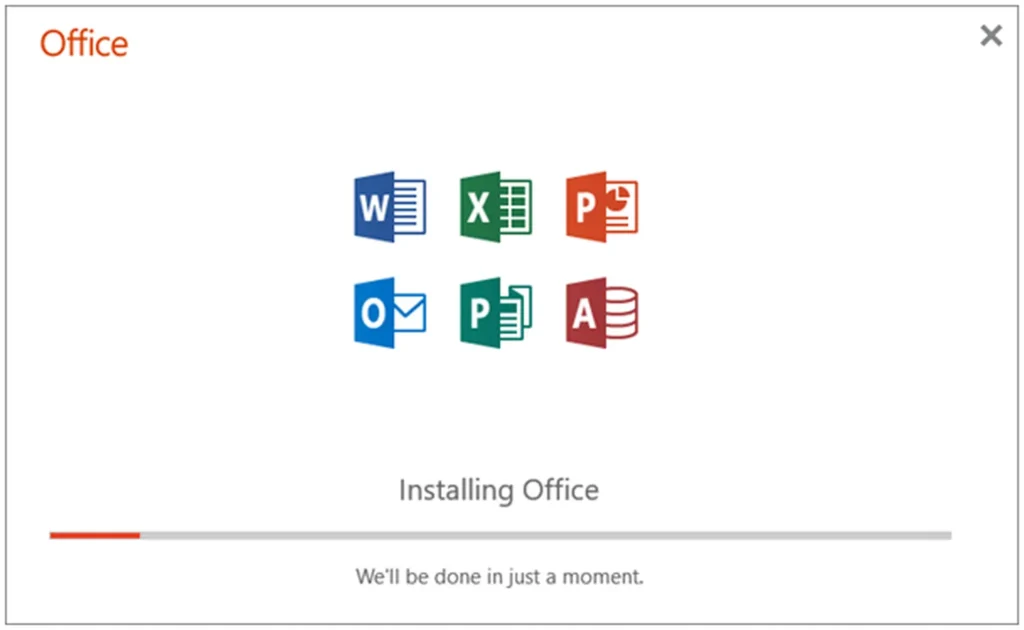
A progress dialog box will appear, indicating the status of the Office installation.
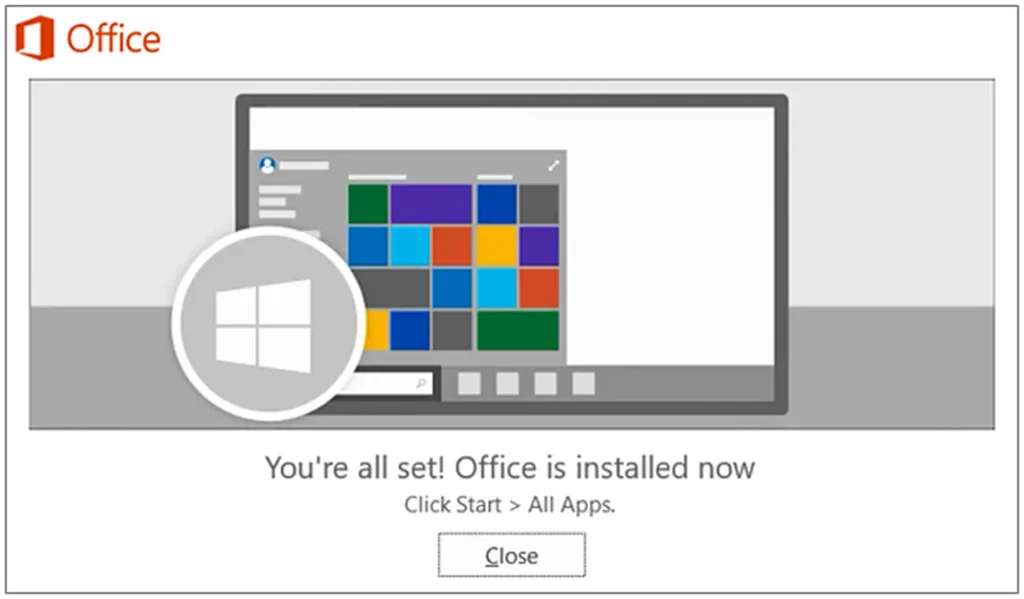
- Step 2: Once the installation is complete, you’ll see the message, “You’re all set! Office is installed now,” accompanied by an animation guiding you to locate Microsoft 365 applications on your computer. Click Close.
Activate Microsoft 365 or Office
- Step 1: To launch an application, click on the Start button in the lower-left corner of your screen and enter the app’s name, such as Word.
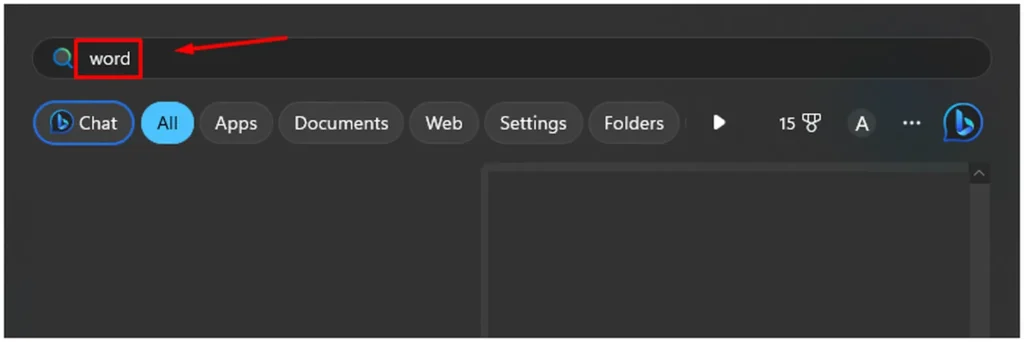
For Windows 8.1 or 8.0 users, type the name of a Microsoft 365 app on the Start screen. Can’t locate your Office apps?
- Step 2: To access the app, click on its icon in the search results.
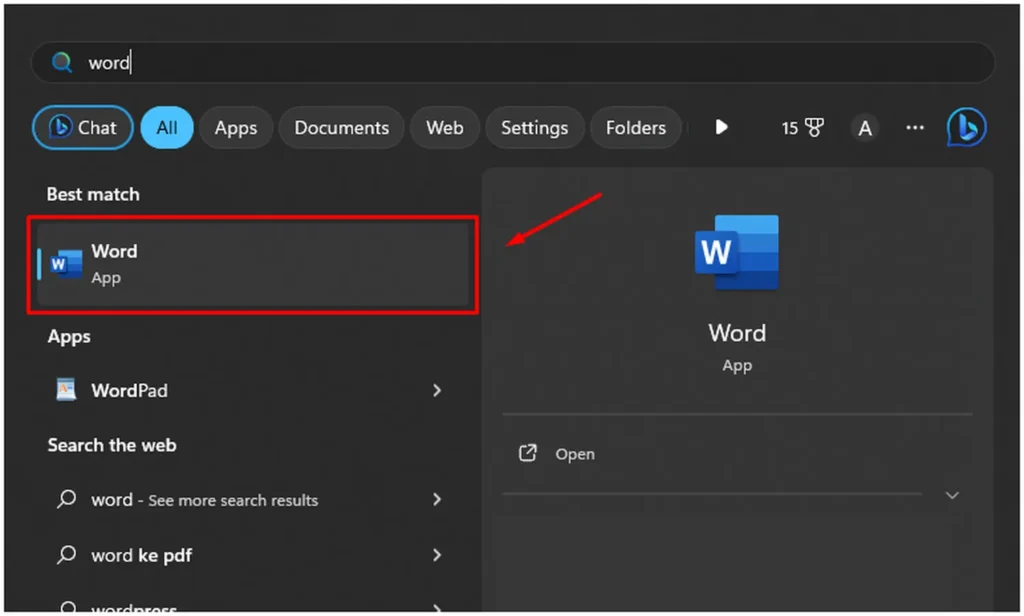
- Step 3: Once the app is open, agree to the license agreement. Microsoft 365 or Office is now activated and ready for use.
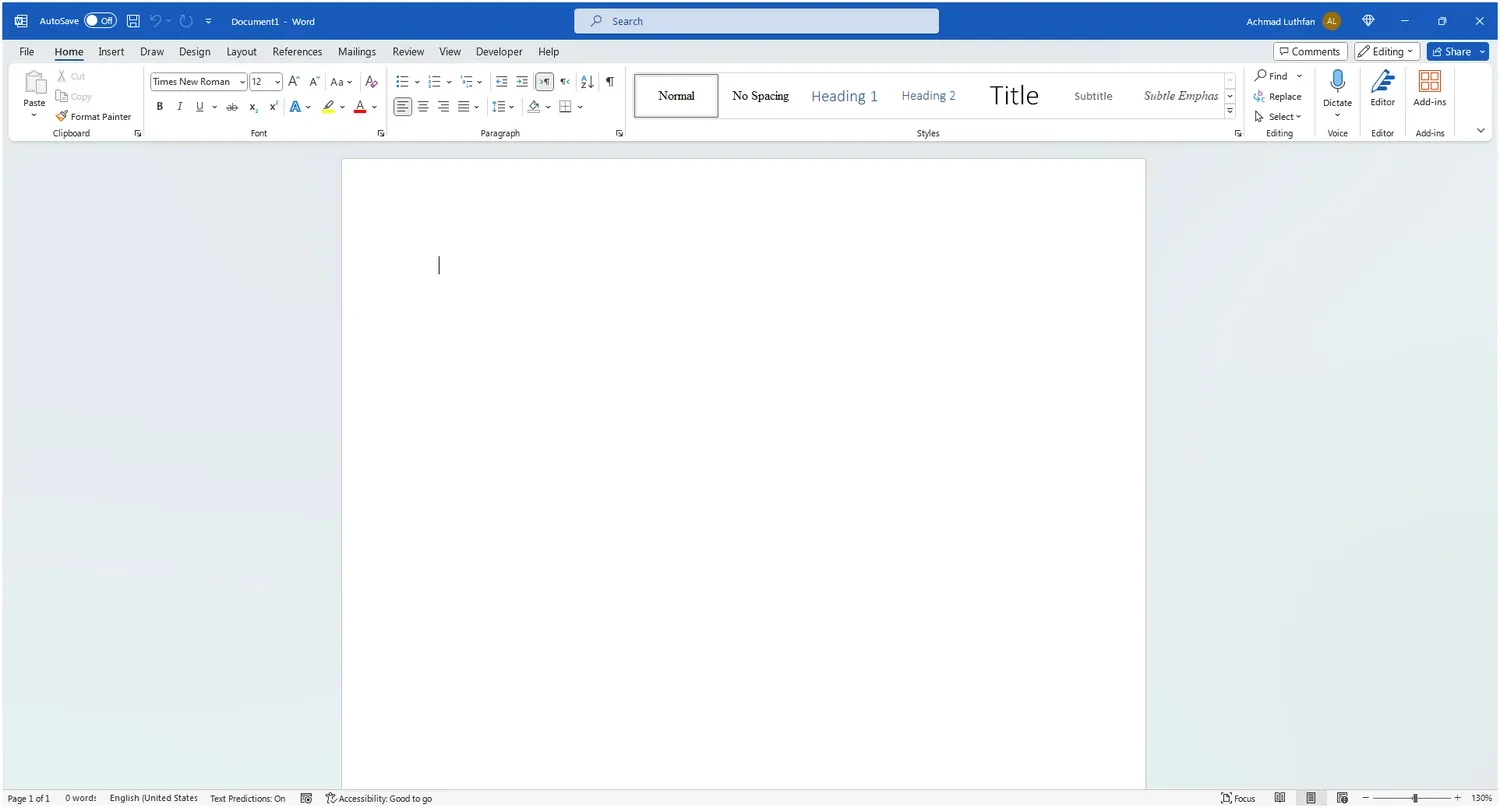
Note: If there are issues with activation, the Activation Wizard will appear. Follow the steps in the wizard to complete the activation process.
Install on a Mac
Sign in and install Microsoft 365 or Office
- Step 1: Visit www.office.com, and if you’re not already logged in, click on the Sign in option.
Note: For users of Microsoft 365 operated by 21 Vianet, log in using your work or school account at login.partner.microsoftonline.cn.
If you’re using Microsoft 365 Germany, log in with your work or school account at portal.office.de.
- Step 2: Log in with the account linked to this version of Microsoft 365 or Office. This account can either be a Microsoft account or a work or school account. If you’ve forgotten the account you use with Office,
- Step 3: After logging in, follow the steps that correspond to the type of account you used.
- Step 4: Follow the steps provided below to finish installing your Microsoft 365 apps.
Install Microsoft 365 or Office
- Step 1: After the download is complete, go to Finder, navigate to Downloads, and double-click on the Microsoft Office installer.pkg file (the name may vary slightly).
Tip: If you encounter an error stating that the Microsoft Office installer.pkg can’t be opened because it’s from an unidentified developer, wait for 10 seconds and move the downloaded file to your desktop. Hold Control + click the file to launch the installer.
- Step 2: On the initial installation screen, click Continue to initiate the installation process.
- Step 3: Review the software license agreement and click Continue.
- Step 4: Select Agree to accept the terms of the software license agreement.
- Step 5: Choose your preferred Microsoft 365 installation option and click Continue.
- Step 6: Review the disk space requirements or modify the installation location, then click Install.
Note: If you wish to install specific Microsoft 365 apps rather than the entire suite, click the Customize button and uncheck the programs you don’t need.
- Step 7: f prompted, enter your Mac login password and click Install Software. (This is the password used to log in to your Mac.)
- Step 8: The software installation process begins. Click Close when the installation is complete. If there are issues with Microsoft 365 installation, refer to “What to try if you can’t install or activate Office for Mac.”
Launch an app and start the activation process
- Step 1: Click on the Launchpad icon located in the Dock to view all of your apps.
- Step 2: Locate and click on the Microsoft Word icon (or another Microsoft 365 or Office icon) within the Launchpad.
- Step 3: The What’s New window will automatically open when you launch Word. Click Get Started to initiate the activation process. If you require assistance with activating Microsoft 365 or Office, refer to Activate Microsoft 365 or Office for Mac. For troubleshooting activation issues, see What to try if you can’t install or activate Microsoft 365 or Office for Mac.
Installation notes
To pin app icons to the dock, follow these steps:
- Navigate to Finder > Applications and open the desired Office app.
- In the Dock, Control+click or right-click on the app icon.
- From the menu, select Options > Keep in Dock.
Regarding installing Microsoft 365 on your iPhone or iPad, yes, it is possible. Refer to the instructions in “Install and set up Microsoft 365 apps on an iPhone or iPad” and “Set up email on an iOS device (iPhone or iPad).“
Tip: If you’re a small business owner seeking more information on setting up Microsoft 365, visit Small Business Help & Learning.